Prepare Harbor
In Harbor Settings, choose your library and allow Microphone, Screen & System Audio, and optional Calendar access. Turn on meeting preparation for the series you want.
 Harbor
Harbor for Mac Beta
Capture voice notes and screen meetings, follow the live transcript, and turn what was said and shown into evidence-linked notes—all in a private workspace built for Mac.
Developer ID signed beta for macOS 26 or later. Universal for Apple silicon and Intel.
Native capture
Choose meeting audio or your microphone, follow the live transcript, and save the result into your private Harbor library.
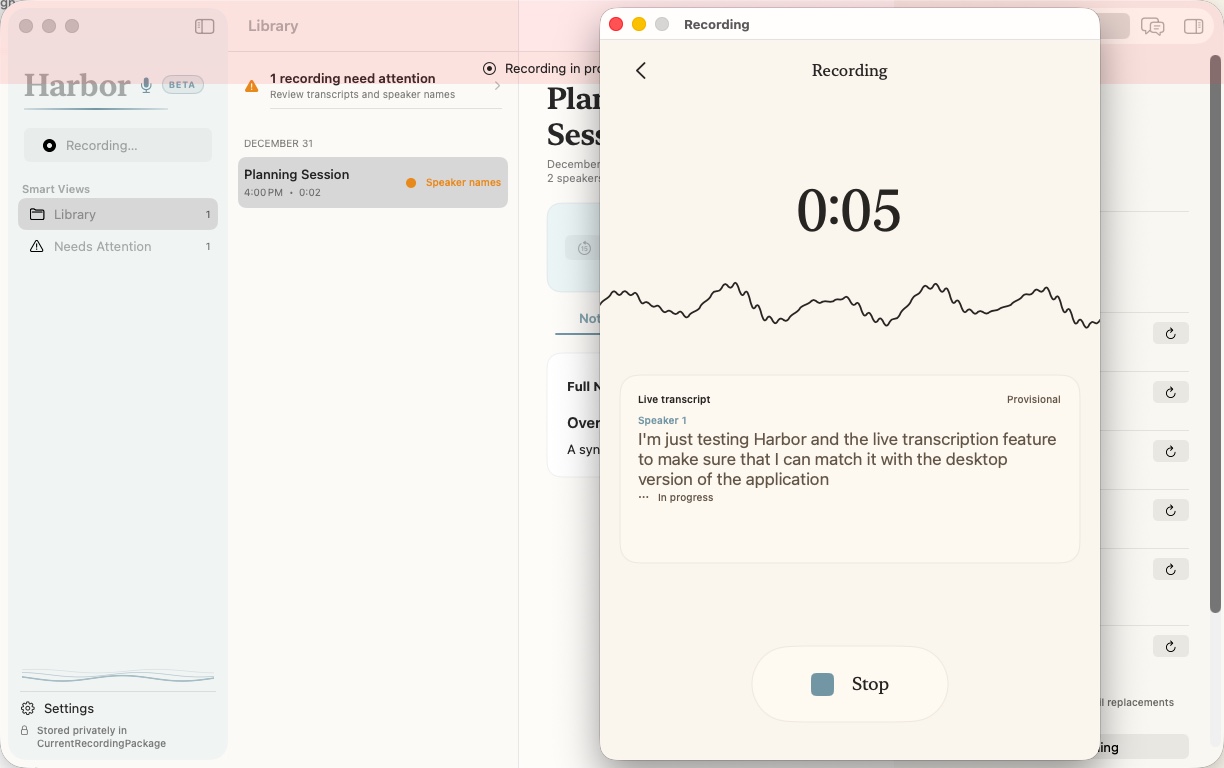
01Choose the sourceMeeting audio and microphone, or microphone alone.
02Stay orientedLive levels, transcript, and elapsed time.
03Stop with intentHarbor saves the recording before later processing begins.
Screen Meeting
Record selected screen activity, application audio, and your microphone together. Harbor preserves each source while creating the canonical audio your transcript, notes, and everyday playback use.
ScreenWhat was shown
App audioWhat others said
MicrophoneWhat you said
Harbor audioOne canonical recording
Optional assistant automation
Connect a supported assistant to Harbor’s restricted local control bridge. It can prepare, start, pause, resume, and stop an approved meeting recording while Harbor captures the audio and creates the transcript and notes on your Mac.
The assistant controls the workflow—not your content. It cannot read recordings, audio, transcripts, summaries, notes, participant names, calendar titles, or your Harbor library.
1 · Choose an assistant
Only sanitized meeting-control state crosses this boundary.
2 · Choose the meeting app
In Harbor Settings, choose your library and allow Microphone, Screen & System Audio, and optional Calendar access. Turn on meeting preparation for the series you want.
Open Settings > Autopilot and choose Pair Integration. Use Harbor’s OpenClaw or Hermes integration package, or connect a desktop assistant that supports a local stdio MCP server.
Ask the assistant to use Harbor for the upcoming meeting. Harbor issues the valid meeting and action identifiers; the assistant does not guess them.
You provide any required notice or consent. Harbor records the selected meeting app and your microphone, then saves the audio, transcript, and notes to your library.
Example instruction
“Hermes, use Harbor to prepare my next Zoom meeting. Ask me to confirm consent before recording, start when Harbor says it is ready, stop at the scheduled end, and tell me when Harbor has saved the recording.”
Compatibility: OpenClaw and Hermes use Harbor’s dedicated, separately installed integration packages. ChatGPT, Google Spark, Claude, and other assistants require a desktop configuration that can run Harbor’s local stdio MCP helper; availability and setup vary by assistant. Harbor also supports manual capture and its own local meeting scheduler without any external assistant.
Desktop library
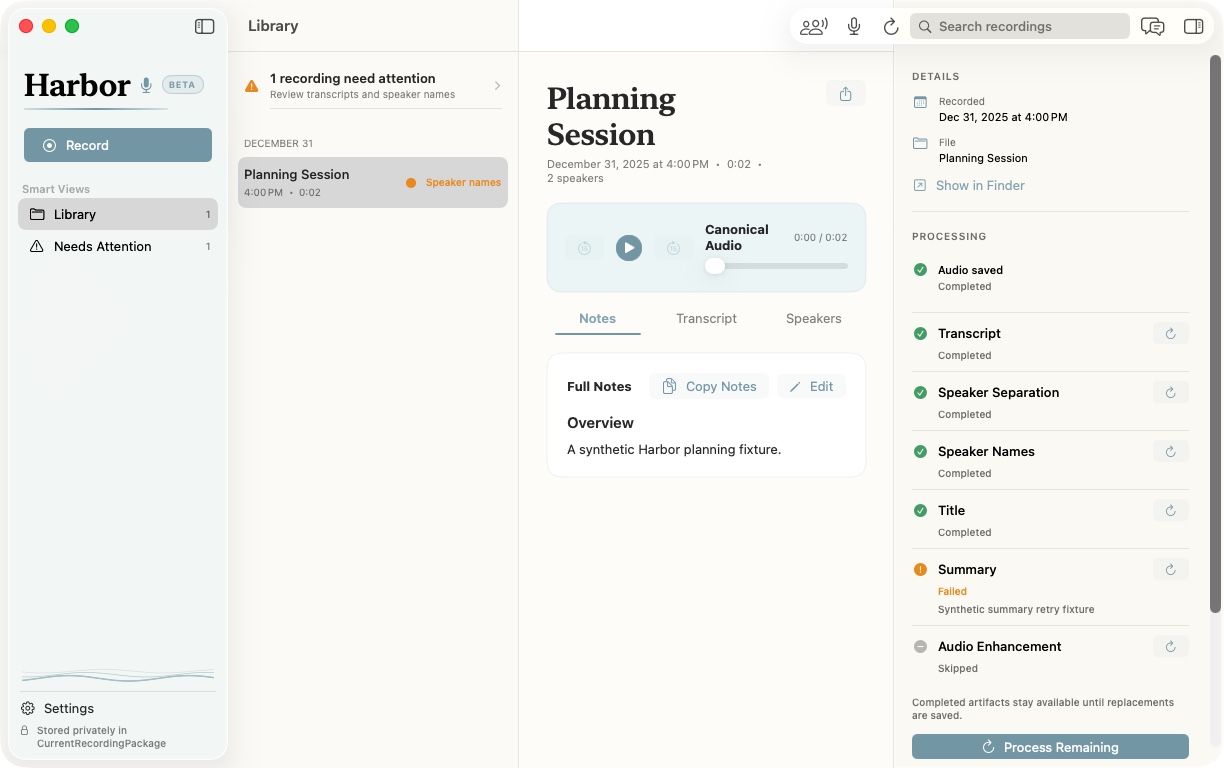
Browse, search, play, and review with notes, transcripts, and speakers in one place.
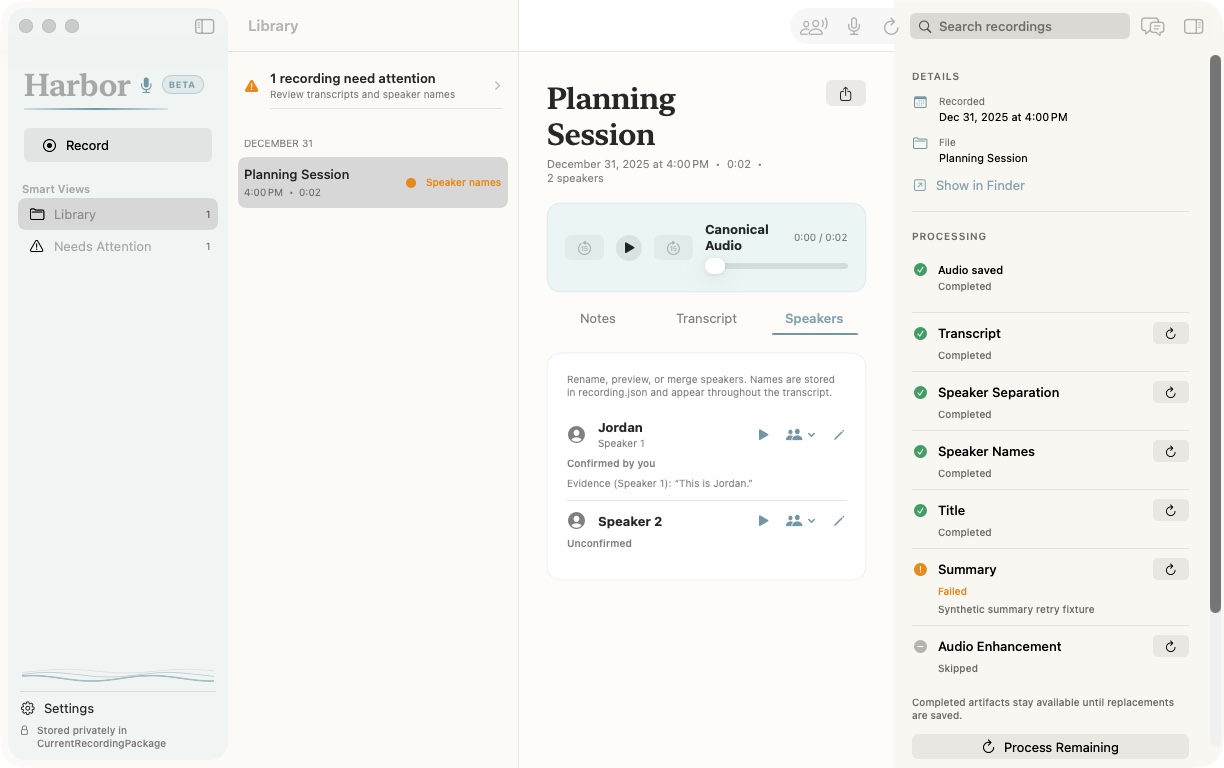
Review and correct
Listen beside the text, review speaker labels, and correct the summary when your context matters more than a model guess.
Visual evidence
Harbor uses local OCR, nearby transcript evidence, and the moments you mark to find useful frames. Decisions and actions can stay connected to the words and visuals that support them.
The team aligned on three priorities for the next quarter and assigned the first follow-up.
01Mark what mattersSave the current frame with an optional note while the meeting is happening.
02Find useful moments locallyScreen changes, OCR, and nearby speech help Harbor suggest visual cues on your Mac.
03Keep evidence attachedJump from a decision, action, or visual cue back to its place in the recording.
Synchronized review
Watch the screen recording with Harbor’s canonical audio, then seek from transcript timestamps, decisions, actions, anchors, or visual cues. When you need one shareable file, export a combined movie as an explicit action.
Screen video and canonical audio, synchronized into one file when you ask.
Control every stage
Retry only the stage that needs attention, or use Process Remaining to continue unfinished work in order without discarding completed artifacts.
See how Harbor protects the recording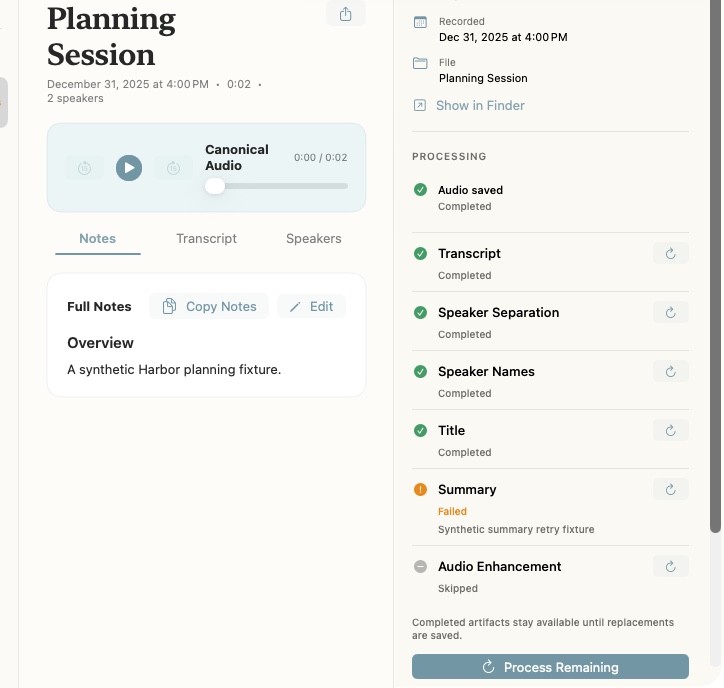
Recovery and durability
If something goes wrong, Harbor keeps the original audio safe and makes the next useful step visible.
Your recording is not overwritten or discarded when a later step fails.
Needs Attention shows what happened and where review is useful.
Resume unfinished work while completed stages and saved audio stay in place.
Work with the recording package
Every recording creates a durable package you can reveal, copy, and share on your terms.
One Harbor library
Harbor for iPhone and Harbor for Mac are built around the same durable recording package, so the conversation remains yours as your work moves to a larger screen.
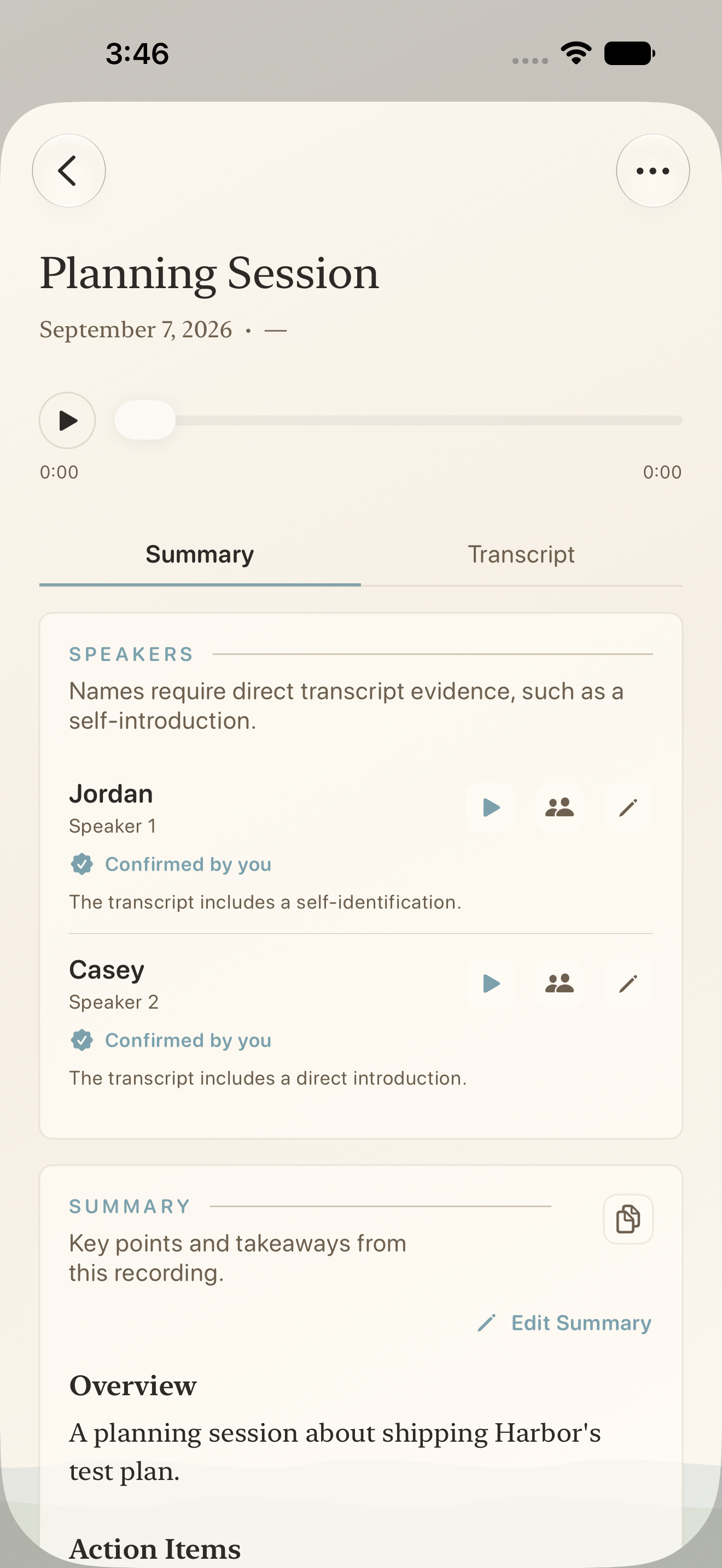
Harbor uses the compatible recording package through supported storage. Availability and refresh timing depend on the storage provider.
Privacy by design
Transcription and note processing happen on your Mac where supported. Some system models may need an initial download.
Harbor works with the recording folder you choose. The original audio and authoritative record remain yours.
When Harbor prepares notes or audio for an assistant, you decide what to paste or share.
Harbor for Mac Beta
Private meeting notes, with the room and control of a native desktop workspace.
Developer ID signed beta for macOS 26 or later. Universal for Apple silicon and Intel.